Disable Pop-up Blockers
 Updated
by
Arianne G.
Updated
by
Arianne G.
In order to use certain features in XactAnalysis, you may need to disable your browser's pop-up blocker.
XactAnalysis works best on supported browsers. Please see XactAnalysis System Requirements to make sure you’re using a supported browser and version!
Chrome
Allow pop-ups for specific URLs
You can adjust your Chrome pop-up blocker settings to always allow specific URLs, such as those for XactAnalysis.
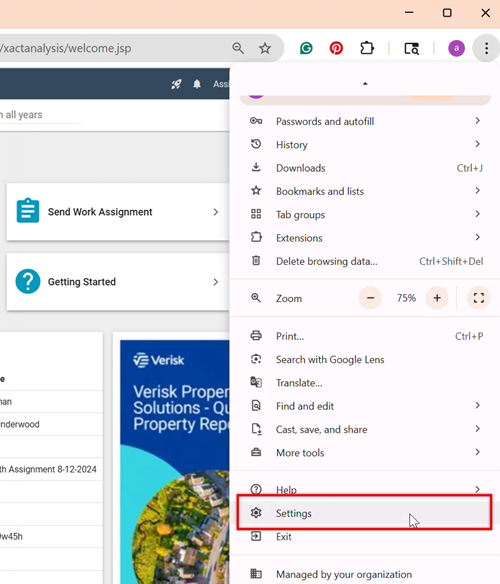
- Select the Customize and control Google Chrome icon
 .
. - Select Settings.
- Select Privacy and security.
- Scroll to the Content section and select Pop-ups and redirects.
- Under Customized behaviors, select the Add button next to Allowed to send pop-ups and use redirects.
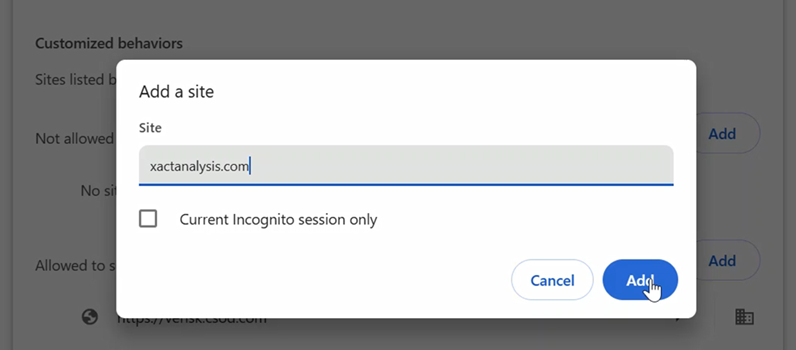
- Enter the site that you want the pop-up blocker to allow and click Add.
Microsoft Edge
Allow pop-ups for specific URLs
You can adjust your Microsoft Edge pop-up blocker settings to always allow specific URLs, such as those for XactAnalysis.
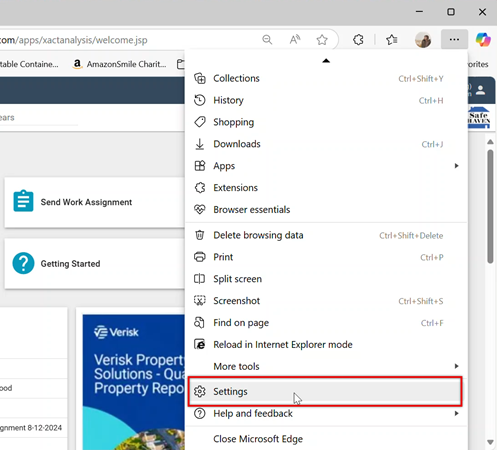
- Select the Settings and more icon
 in the upper right corner of the browser window.
 - Select Settings.
- Select Cookies and site permissions.
- Under Site permissions, select All permissions.
- Select Pop-ups and redirects.
- In the Allow section, select Add.
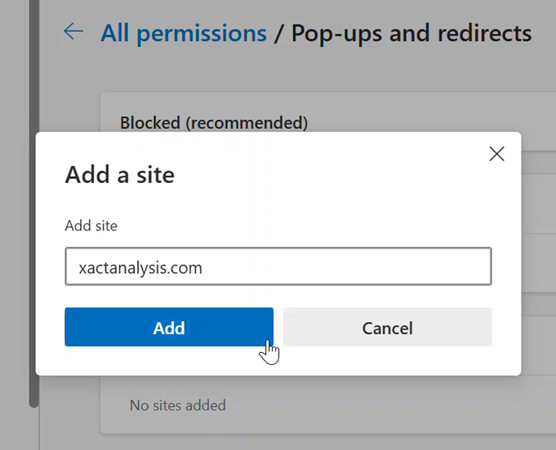
- Enter the site that you want the pop-up blocker to allow and click Add.