Using formulas in XactInsights
 Updated
by
Arianne G.
Updated
by
Arianne G.
You can create and add formulas in XactInsights. The result of the formula is added to the worksheet as a column. Formulas are not reusable or interchangeable; they can only be used with the worksheet they were originally created with.
Add a formula to a search
- In XactInsights, select the Search tab.
- In the Data panel on the left-hand side, expand the Formulas section.
- Select either the Create formula button or the plus sign
 .
. - Write the name of the formula in the Formula name field.
- Write the formula in the main box. As you type, suggestions for formula operators will appear.
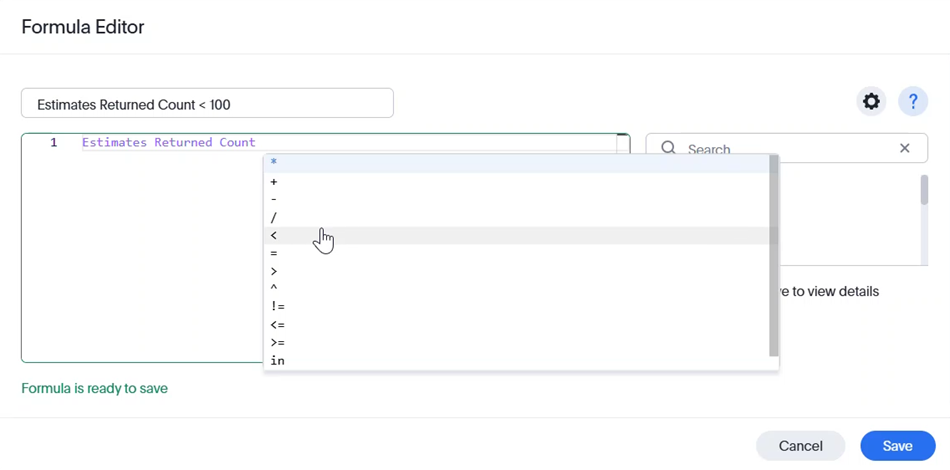
 icon to see a list of formula operators you can use.
 icon to configure how the data in your results is presented. Select Data type, Measure or attribute, or Default aggregation from the respective dropdown menus.
- When you are done, select Save. Your formula is applied to your search automatically.
View or edit a formula
Formulas that have been added to a search
After you add a formula in a search, you can view or edit it in the same session.
- In the Data panel, expand the Formulas section.
- Hover over the formula name and select the Edit formula icon.
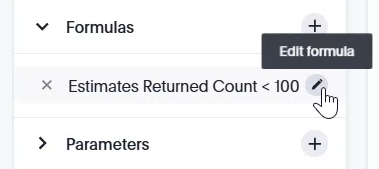
- View or edit your formula in the Formula Editor.
- If you edit your formula, select Save. Otherwise, select Cancel.
Formulas in an existing answer
Anyone who has edit privileges on an answer can also edit any of its formulas.
- Open the answer whose formula you would like to edit.
- If the answer is within a Liveboard, select the More icon
 for that answer and click Edit.
- If the answer is within a Liveboard, select the More icon
- In the Data panel, expand the Formulas section. You can see a list of all the formulas in the answer.
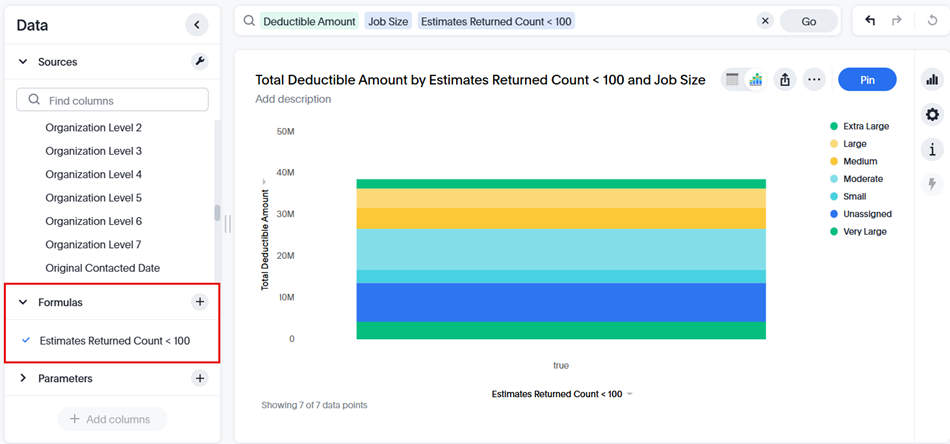
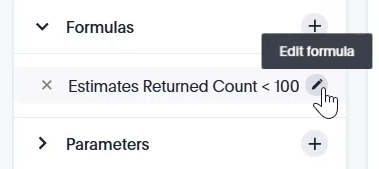
- Hover over the formula name and select the Edit formula icon.
- View or edit your formula in the Formula Editor.
- If you edit your formula, select Save. Otherwise, select Cancel.
Formula examples
Comparison
Estimates Returned Count < 100
This formula filters results so that only results with fewer than 100 estimates returned display.
Aggregation
average ( Net Estimate Amount )
This formula averages all net estimate amount values in your results.
group_average ( Net Estimate Amount , Policy Number , Business Unit )
This formula returns the average net estimate amount grouped by policy number and business unit.
Date and time
add_years ( 02/16/2022 , 2 )
This formula adds two years to the given date, resulting in 02/16/2024.