Insight Analyst
 Updated
by
Mara K
Updated
by
Mara K
Insight Analyst is an AI-powered tool in XactInsights that lets users ask business questions in natural language and receive answers, visualisations and summaries. It removes the need to manually build queries or formulas and speeds up data exploration.
Perform a search with Insight Analyst
Navigate to Insight Analyst
- From within XactAnalysis, open XactInsights.
- Navigate to Insight Analyst in one of the following ways:
- Go to the search bar on the XactInsights homepage.
- Select Insight Analyst on the menu on the left.

Select a data source
- Select the data model selector on the search bar.

- Select a worksheet from the list in the Select data model window.
- Select the Select button.

Ask a question
Insight Analyst allows you to use questions and prompts to get insights on data. For best results, write questions in clear, specific language that reflects the exact results you want. Include the measures, attributes, and filters you want to use. If needed, refine your question with follow-up prompts to narrow or clarify results.
- Enter a prompt or question into the search bar.
- If you are on the Insight Analyst page, select an analysis mode.
- Quick Search helps users get answers faster for straightforward requests.
- Deep Analysis provides more comprehensive investigation and planning for complex analytical questions. It may take longer to get an answer.
- Select the Submit button or press Enter on your keyboard.

If you select Deep Analysis, Insight Analyst first proposes an investigation plan for how it will analyse data to answer your question. Enter Yes to proceed, or give Insight Analyst feedback on what should change.

Stop a response
If a response is taking longer than expected or needs to be revised, you can stop the analysis before it completes. This helps users refine questions more quickly and avoid waiting for unnecessary results.
- Submit a question in Insight Analyst.
- While the response is generating, select the Stop button. This cancels the current analysis.
- Modify the question or enter a new one.
- Submit the revised question.
Review the response
Based on your question, Insight Analyst selects the appropriate columns, organises the results and returns the top values with a visualisation and short summary. Results depend on the fields available in the selected worksheet.
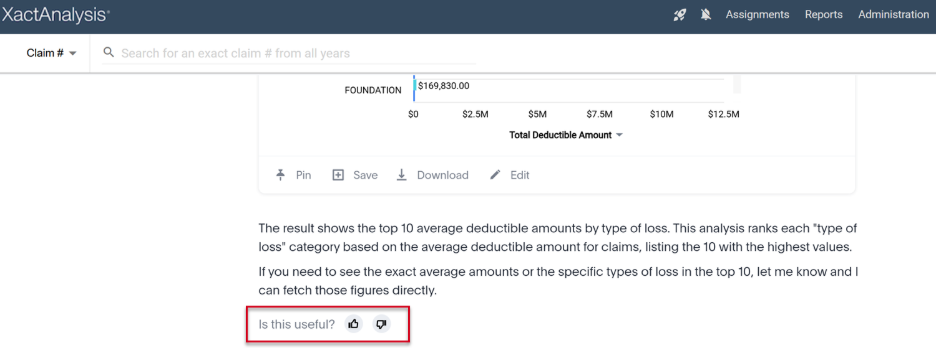
Review how an answer was generated
The Show Work feature improves transparency by displaying the information and analysis used to generate a response. This helps users validate results and better understand how Insight Analyst arrived at its conclusions.
After your response is generated, select Show Work to see the process Insight Analyst used to answer your question. Review the steps taken and verify that the results match the intended analysis.
Change a visualisation
Insight Analyst generates visualisations based on your search query. You can do any of the following with a visualisation:
- Change the chart to a table (or vice versa).
- Expand the visualisation into a larger window.
- Pin the visualisation to a liveboard.
- Save the visualisation as an answer.
- Download the visualisation as a .png, .xlsx, or .csv file.
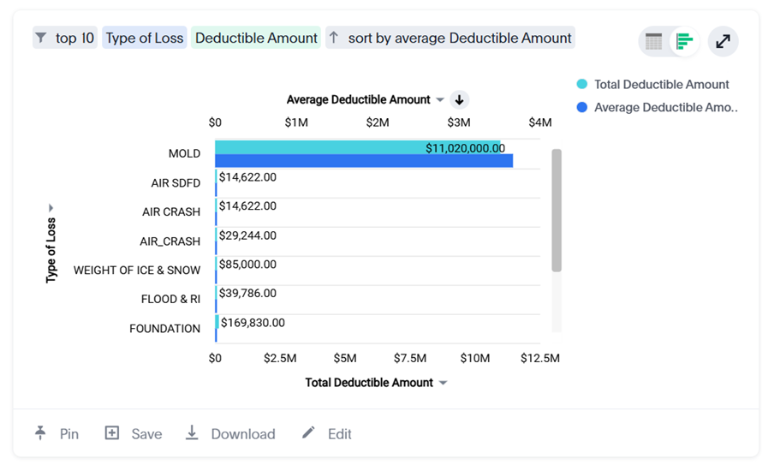
Edit a visualisation
If you select Edit at the bottom of a visualisation, the answer opens in a window that looks similar to the XactInsights search page. You can then add more measures and attributes like you would when performing a regular search. When you are done, select Done editing.
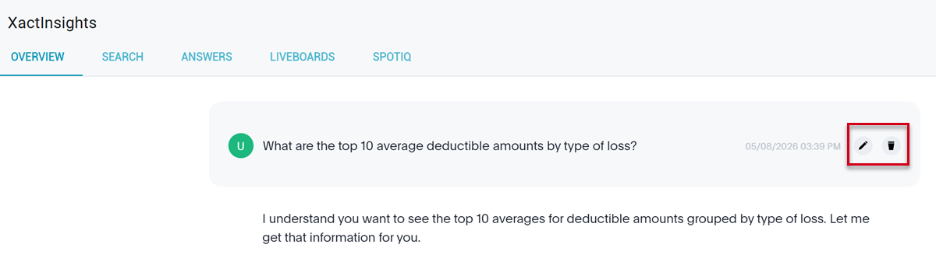
Edit or delete a question
- Select the edit icon to edit your question.
- Select the delete icon to delete your question.
Refine your answer
To refine your answer, enter a follow-up question that references the previous result into the search bar at the bottom of the page, then select Submit.
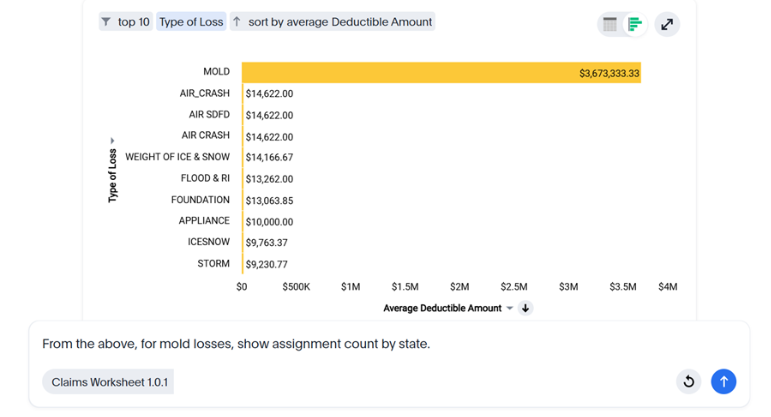
Follow-up questions inherit filters and context from the previous answer. To remove context, start a new search with a new question instead of asking a follow-up question. You can start a new search by selecting the reset icon on the search bar.
